TAKE CONTROL OF YOUR FUTURE MONEY
BUDGETS
The most important part to figuring out your future money. Everything that is going to happen in your account regularly is represented with a Budget. Think of things like rent, utilities, credit card bills, and paychecks of course.
It’s the first tab for a reason
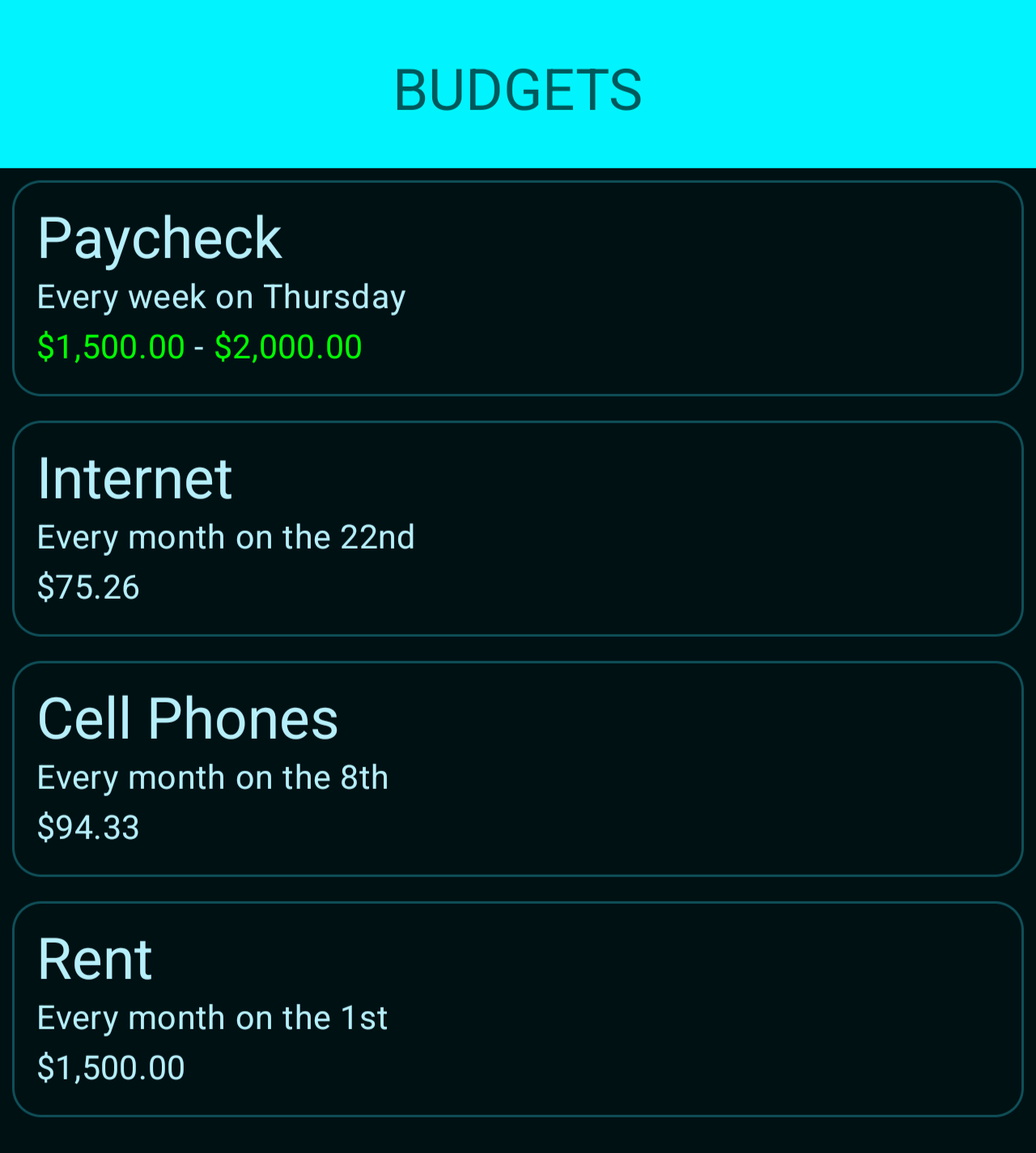
This screen lists out all of the budgets that you have configured in Budget Tracker. High level data can be viewed at a glance here such as the name, amount, and recurrence of each budget.
Want to edit a budget? Just tap it. Want to add a new one? That’s where the plus on the bottom right comes in.
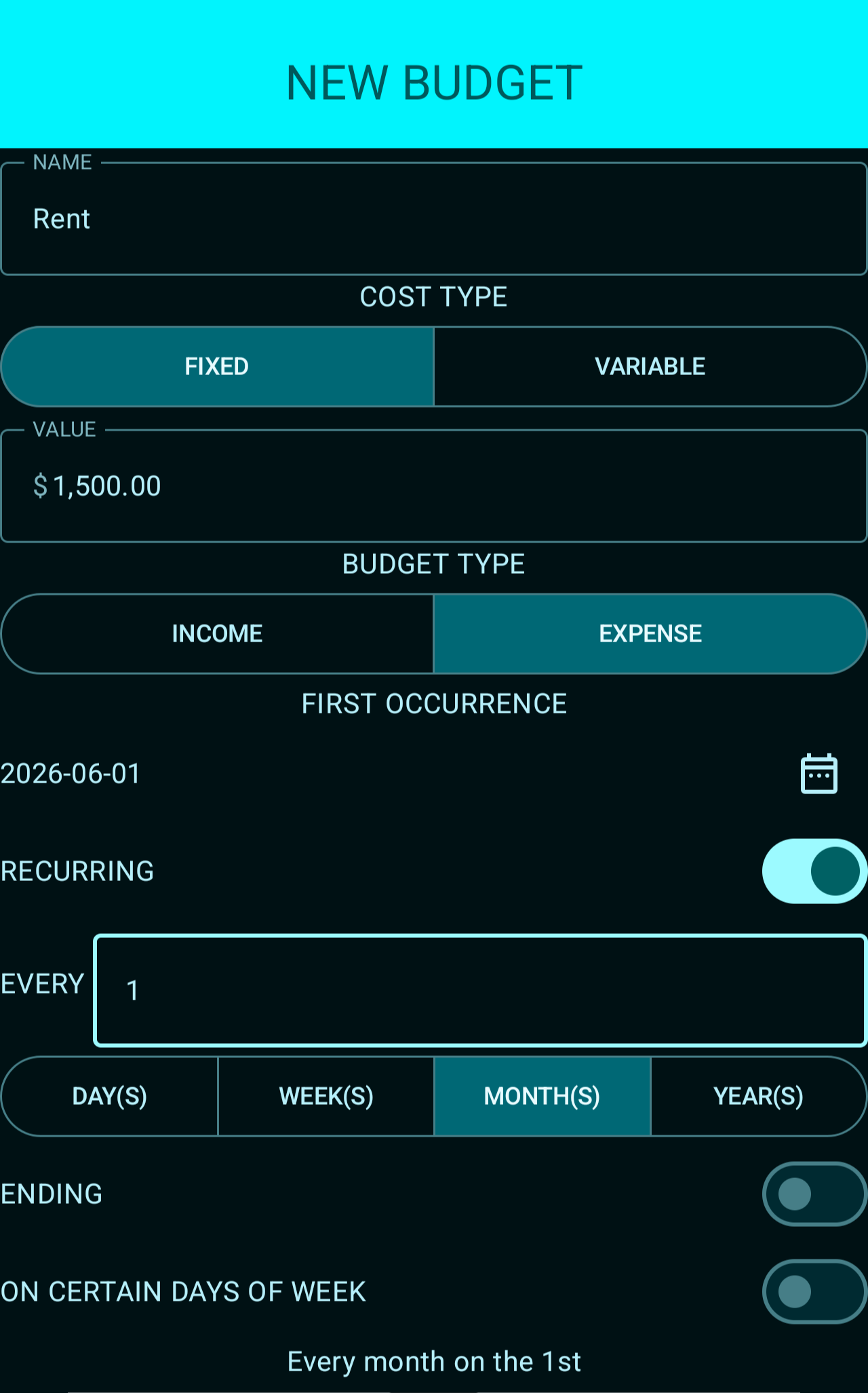
Every budget is different, so we gave you options on how to configure them.
Cost Type: This allows you to account for budgets that aren’t the same every time they come up. Things like a credit card bill or usage based utilities will be variable, allowing the app to project a range. On the other hand, things like rent or a car payment will be fixed.
Budget Type: A simple toggle telling Budget Tracker whether or not you are making or spending money in this budget.
First Occurrence: This lets Budget Tracker know the first time that this budget is going to happen. Don’t worry about the past though, Budget Tracker only looks at your future.
Recurring: If this is something that is going to happen regularly, flip this toggle on. This tells Budget Tracker that the budget should be repeated on a regular interval. The next few fields allow you to configure how often the budget should show up, whether or not it should end, and if it should only occur on certain days of the week. Something like a scheduled transfer on a certain day of the month probably won’t clear on the weekends, so you can set that to only occur on weekdays. And if you know the last payment date of your car loan, you can put that in here too so that you can see that extra cash when it’s paid off. If you aren’t sure exactly how it is set up, just check the text at the bottom, it should read out the recurrence to you in plain English.
BALANCE SHEET
Once your budgets have been configured, Budget Tracker gets to work. This tab compiles all of your data and lets you know where you upcoming money should be. Remember, Budget Tracker is only as accurate as the data you put in, so be precise!
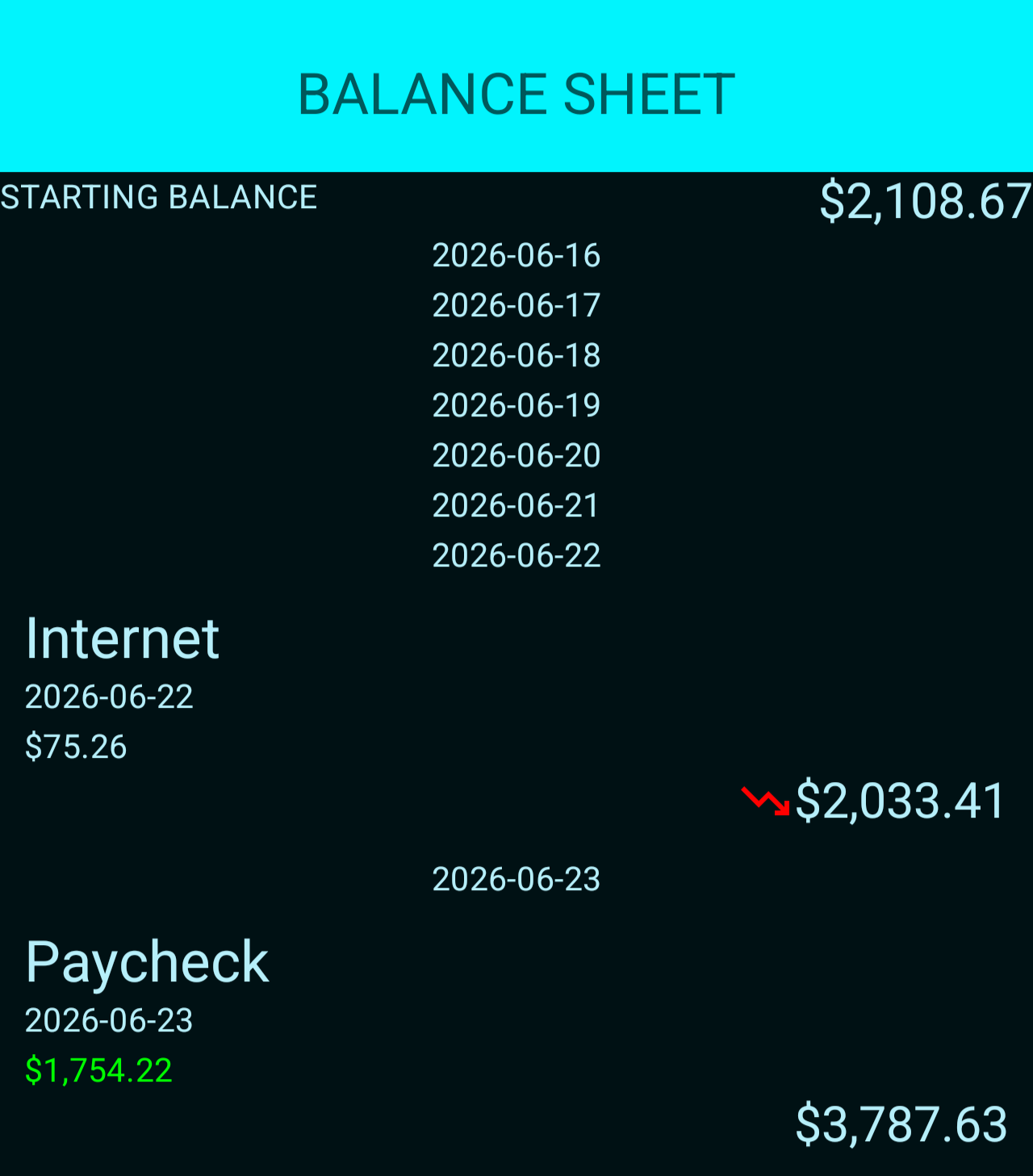
This is where it all comes together. The Balance Sheet runs through every day and shows you what your balance should be! Helpful icons will show your lowest and highest balance in a given month so you know when to scrimp and when you can save.
Starting Balance: This is the balance of your account right now. Budget Tracker will use this as a starting point for all the future calculations. It doesn’t change often so Budget Tracker will only ask you every 24 hours, but you can always tap it to change it whenever you want.
Line Items: Each of these is derived from a budget that hit a recurrence on that day, or from an ad hoc line item that was added with the plus sign at the bottom of this screen. Want to edit it? Just give it a tap. The edit screen looks and behaves just like the budget screen.
CHARTS
This tab will give you high level information about what has been calculated. We know it’s kind of bare right now, we’re working on some good stuff. Stay tuned!
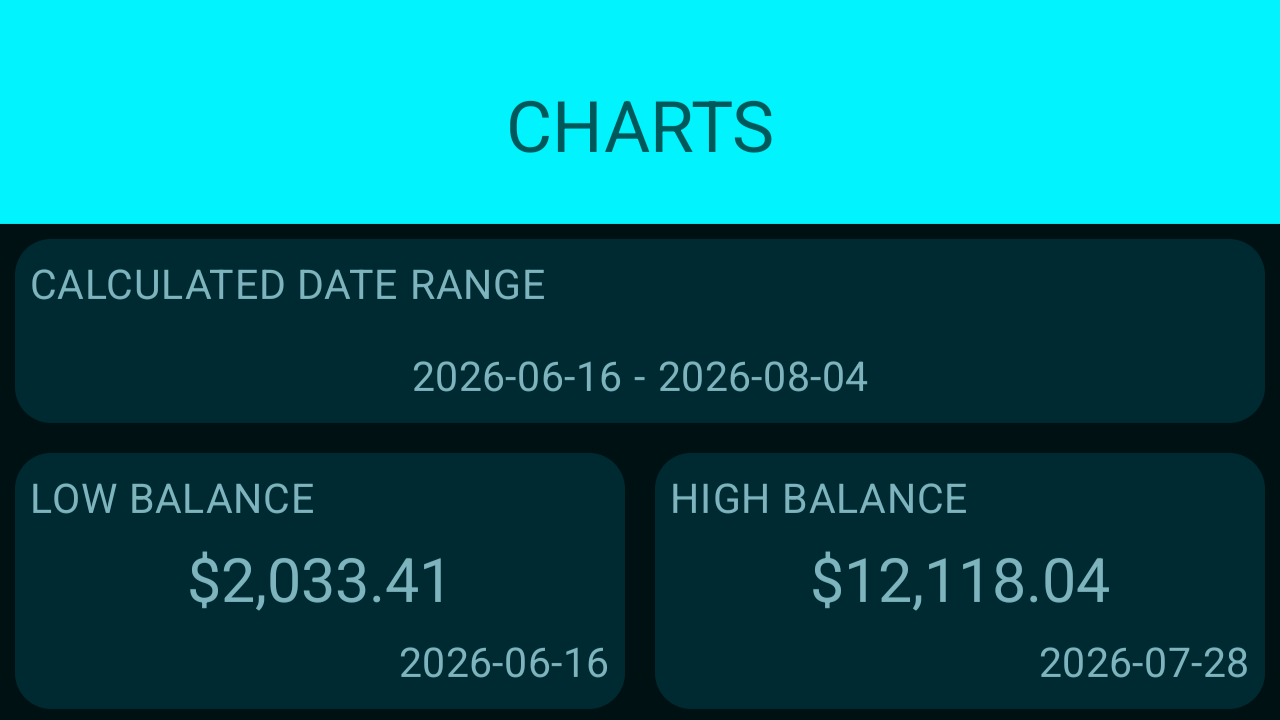
Right now, this tab just shows you the highest balance, lowest balance, and complete date range that Budget Tracker has done calculations for. We are working to add more!
Settings
Not everyone wants the app to look the same way. Budget Tracker gives you some options on how you want it to display.
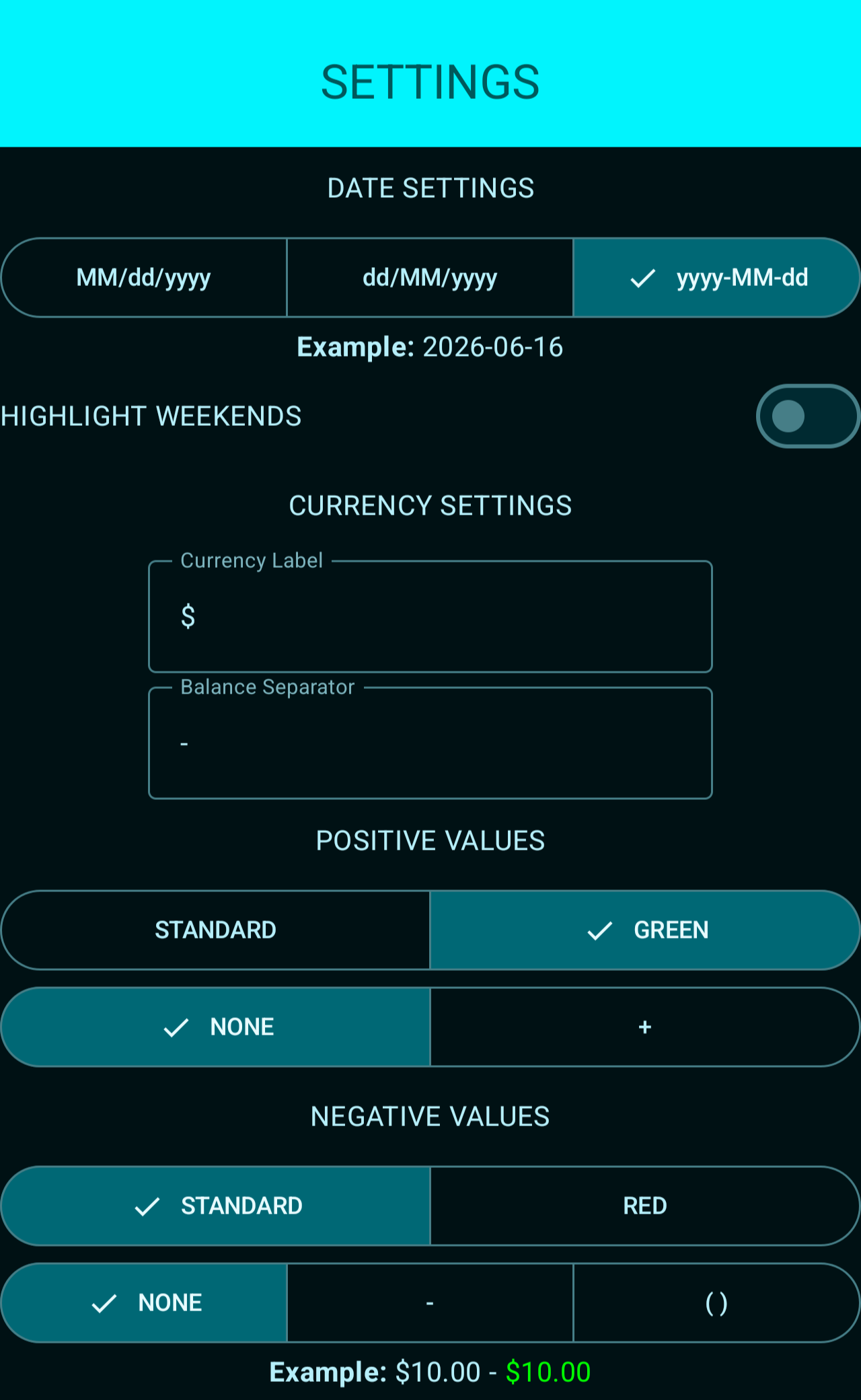
Date Settings: Budget Tracker provides 3 basic ways to display the date. Not sure what the letters mean? Tap one and see the example below, it will show today’s date in the format you’ve chosen.
Highlight Weekends: When this is toggle is on, both Saturday and Sunday will show with a slightly different background in the Balance Sheet. This helps to frame out the weeks as you scroll through.
Currency Label: Initially set to the dollar sign, but you can change it to your local denomination or something fun!
Balance Separator: Initially set to a dash, this is what will show up between the low and high values when Budget Tracker needs to represent a range. Some other popular choices include a tilde, the less than symbol, a right arrow, and the word to.
Positive Values: These two toggles allow you to prefix and color the positive values within Budget Tracker. Like your good numbers green? Toggle it on. Want a plus sign? There’s a toggle for that too.
Negative Values: This is the same kind of deal but for negative numbers. Two toggles to color your negative values red and either put a negative sign in front or wrap them in parenthesis.
Don’t worry about having to dig through the app to see how these changes will affect things. There’s an example at the bottom that shows you want negative ten to positive ten would look like with your chosen settings.
PRIVACY
While you do enter information about your spending in Budget Tracker, all of the calculations happen right on your phone. That means your data is safe and is never sold!
Get it now!